Catalogue Access
This section will explain you the steps required to provide the authorization access to the eCommerce web app product catalog. If your eCommerce web app is built using any of the next eCommerce Platforms, then please go through the steps described in the subsection relevant to that platform. Otherwise please contact us @ this link Contact Us and one of our representatives will happily help you complete this step.
Platforms
Magento 1.X
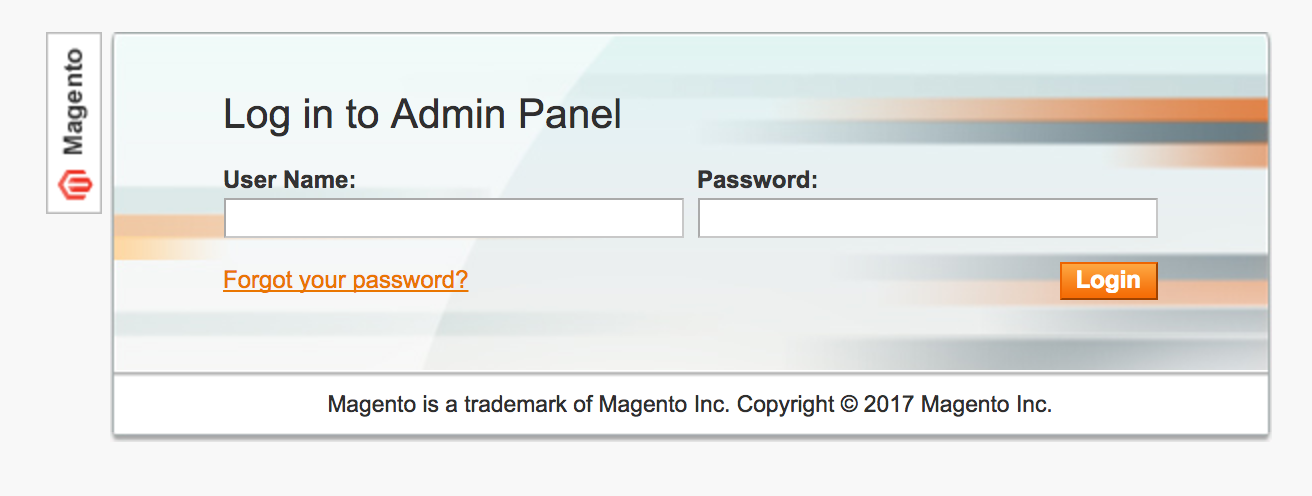
Login to magento admin account
Go to systems > web services > soap/XML-RPC-Users
Click on add new user
Fill up the account information and click on save user
Go to systems > web services > Roles
Enter the role name, current admin password and click save
Assigning roles to users: go to roles > select role name > click on role resources, select resources which have access to the user and click on save role
Magento 2.X
- Login to Magento admin account using link
- Upon login below screen will be displayed
- Click on Account Settings to launch the below page
- Click on Download Access Token to get to the below page, which displays the access token.
- Now Log into https://ecomtics.com and go configure access and select “Magento 2.x” in partner tab.
Shopify
- Login into the web app admin. E.g., if your domain which is built on Shopify is https://www.shoepify.com then login into admin site https://www.shoepify.com/admin
- Provide the login credentials to enter into Shopify admin console. The user would see a page with left menu bar as shown in below.
- Click on the ‘Apps’ shown on the left menu bar in the above screen. It would take you to the screen shown below.
- Click on Private apps, to find API key and password
- Copy the API Key and Password and provide them in eComtics event UI
WooCommerce
- Login to your Ecomtics Account.
- Go to “Installation” item on the left vertical menu and copy the javascript.
- Login to WordPress admin page
- To install the java script go to Appearance > Themes. On the right-hand side vertical menu bar, please select “Theme Footer”. At the end of the file and right before the body, please copy the javascript that you copied from your eComtics account. Installation is done – Woolah!!!
- Login to WordPress admin page
- To create or manage keys for a user, go to WooCommerce > Settings > API. Now Select Enable the REST API button.
- Before you generate keys, go to the settings and enable the REST API and select the Save changes button.
- Select the User you would like to create a key for in the User field and add a Description. Choose the Read access level for this API key. Then select the Generate API Key button, and it will generate API keys for that user.
- Now you should see two new keys. These two keys are your Consumer Key and Consumer Secret. Please copy the keys; you need to enter those to give access to eComtics to pull the product catalog.
- Log into https://ecomtics.com and configure access and select WooCommerce in partner tab. Enter the Consumer Key and Consumer Secret. Configuration is done – Woolah!!!